Export as a picture, a favicon or code
SVG is the right file for the web, but plenty of places will not take one: a slide, a document, an app store listing, a chat, a website's favicon. And when the drawing is going into code, it is often wanted as a data URI or a component rather than a file. The Download menu turns the drawing in the editor into each of these, and shows you the result before anything is saved or copied.
Opens the editor with a small logo. Choose Download, then Image (PNG, WebP)… or Favicon and app icons….
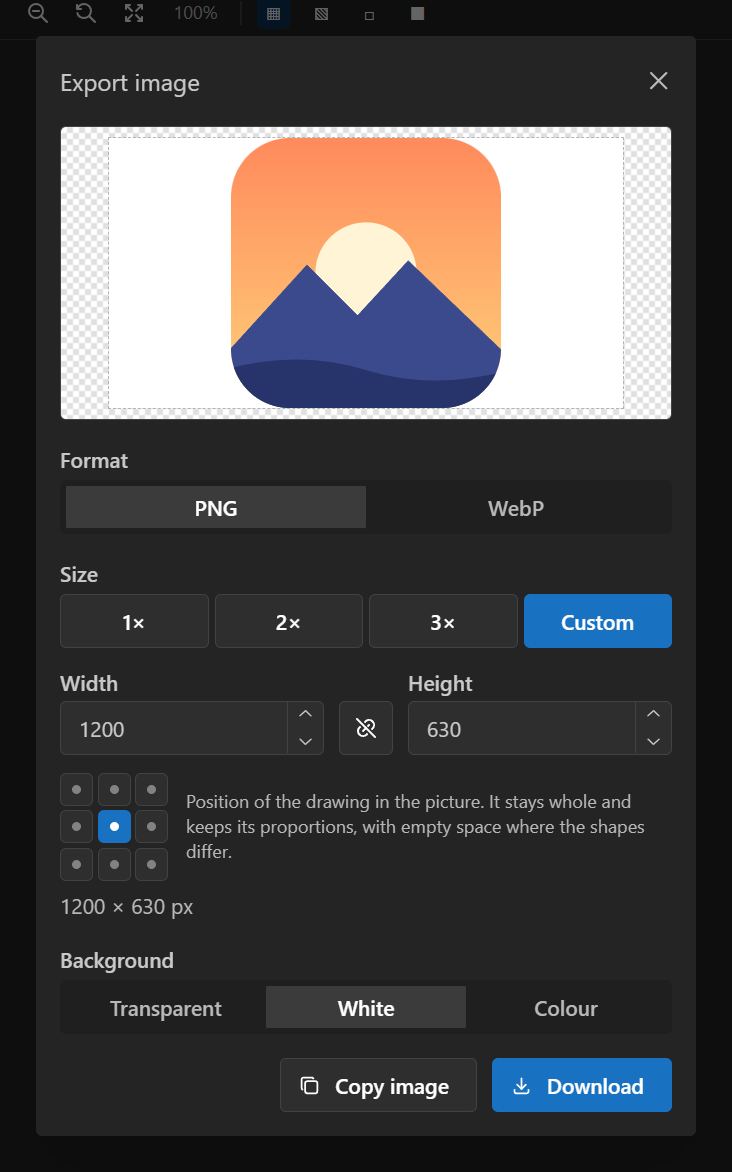
A picture: PNG or WebP
1× is the drawing's own size — what its width and height say, or its viewBox when it has neither — so a 24 px icon comes out as a 24 × 24 picture. The exact pixel size is shown before you save.
2× and 3× are the same picture for sharp screens, such as phones and Retina laptops, where one point of layout is two or three real pixels. Pick several and they come together as one zip — logo.png, [email protected] and [email protected] — with the <img srcset> line that lets each screen load the one it needs.
Custom takes any width and height. With the proportions locked, the other side follows as you type. Unlocked, the drawing is placed whole in a box of another shape — a square logo on a 1200 × 630 social card, say — and the position grid says where. It is never stretched or cropped.
The background can be transparent, white or any colour. Copy image puts the picture on the clipboard instead of saving it, ready to paste into a chat, a document or a design tool.
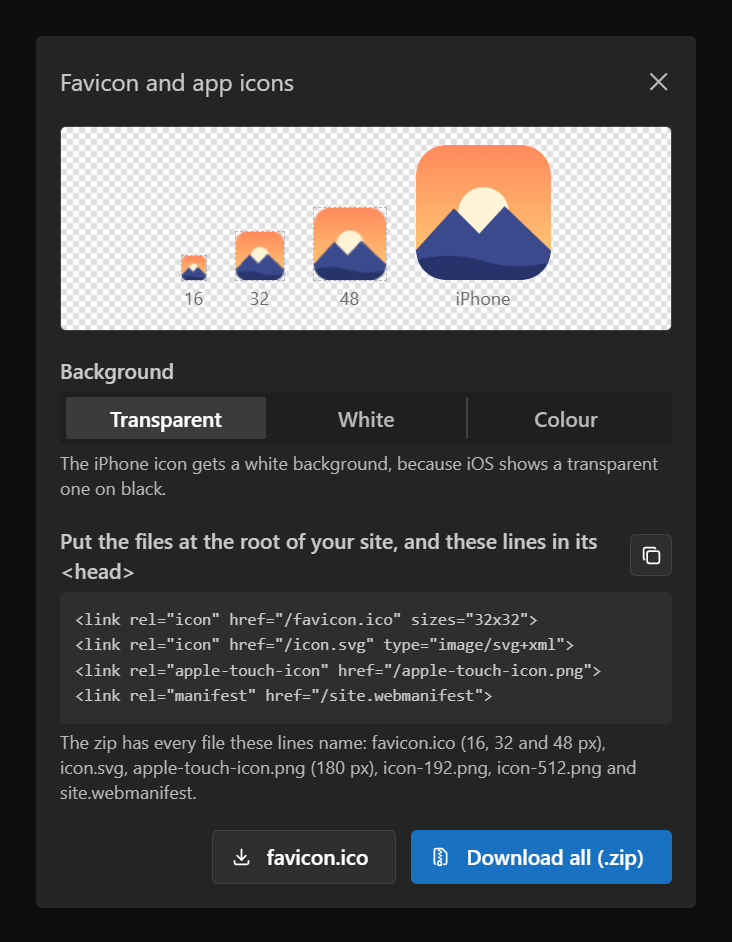
Favicon and app icons
Favicon and app icons… makes the files a website's <head> points at: favicon.ico with 16, 32 and 48 pixel icons, icon.svg, the 180 pixel apple-touch-icon.png for iPhone home screens, and icon-192.png and icon-512.png for a web app manifest. Download favicon.ico on its own, or everything as a zip with site.webmanifest and the lines to paste into your page.
The small sizes are previewed at their real size, which is where a detailed drawing turns to mush — better found out here than in a browser tab. A drawing that is not square is placed whole in the square, where the position grid says.
iOS shows a transparent home-screen icon on black, so with Transparent chosen the iPhone icon alone gets a white background.
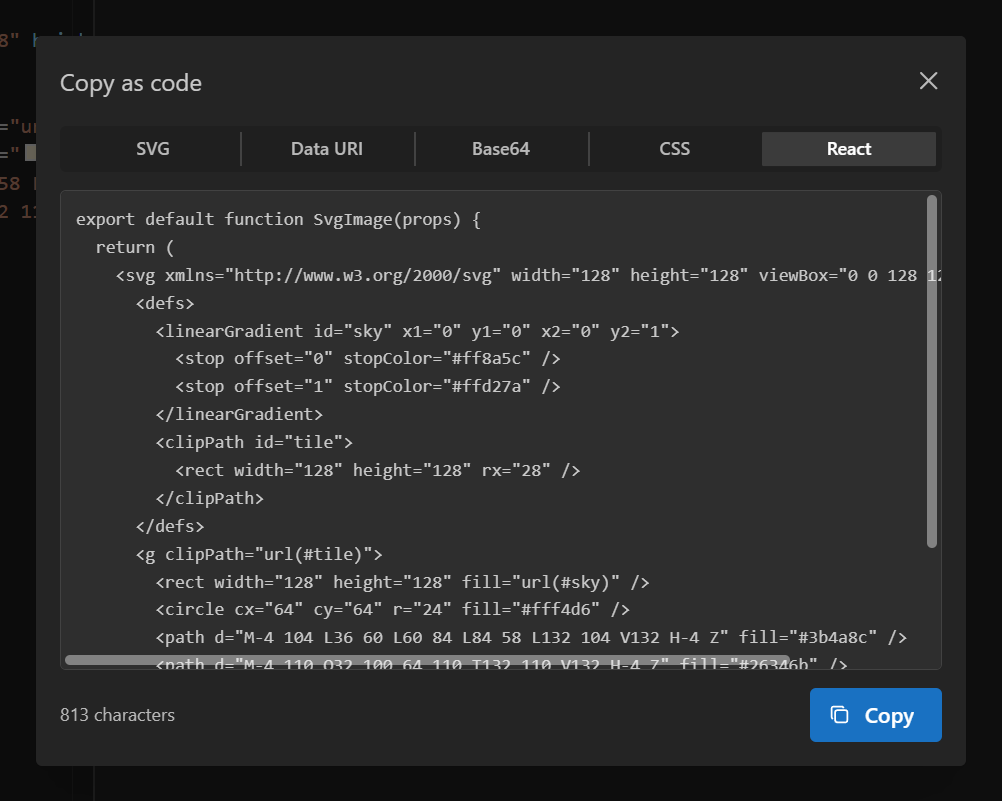
Code: a data URI, CSS or a React component
Code (data URI, CSS, React)… shows the drawing in the form you are about to paste it into: the SVG markup itself; a data URI for an <img src> or a CSS url(); the same in Base64; a ready-made background-image declaration; or a React component.
The component spells attributes the way React expects — className, strokeWidth, xlinkHref — turns style strings into objects, drops what drawing programs leave behind, such as comments and Inkscape markup, and passes its props on from the root, so it can be sized and styled where it is used.
The code is shown with its length before it is copied — worth a look, since the data URI of a large drawing can be longer than you would want in a stylesheet. The form you used last is the one shown next time.
Good to know
- Text is drawn with the fonts on your computer, so a font the SVG names but does not include may come out differently in the picture. The panel says so when the drawing has text.
- Browsers do not load images or fonts from other websites when they draw an SVG as a picture, so those are left out of the export. Put them inside the SVG to be sure; the panel warns when a drawing loads any.
- The largest picture is 8192 pixels on a side and about 16.7 million pixels in all — the most every browser will draw. A larger request is scaled down to fit, and the panel says so.
- WebP is offered only where the browser can write it. Safari cannot, so there the choice is PNG.
- The picture is made in your browser. The drawing is not uploaded anywhere to export it.
Questions
Why is there no JPEG?
JPEG cannot be transparent, and it blurs the sharp edges a drawing is made of. PNG keeps both, and WebP does the same in a smaller file.
Which size should I export for a website?
Often none: every browser shows SVG, and it stays sharp at any size and on any screen, so the .svg itself is usually the best file. Where a picture is needed, pick 1×, 2× and 3× together and use the <img srcset> line that comes in the zip.
Do I need an account?
No. Export works without signing in, and it is free.
My SVG has no xmlns attribute. Will it export?
Yes. SVG copied out of a web page often lacks the declarations a standalone SVG file needs. The editor's preview shows it anyway, and export reads it the same way.